KataGo Setup: Download for Windows, macOS & Linux
Published on April 6, 2026 by StoneBase Team
KataGo is one of the strongest open-source Go AIs available today. Whether you want to understand where you went wrong in a game, explore alternative moves, or study professional-level play, KataGo gives you move-by-move analysis with win rates, score estimates, and best variations.
To set up KataGo, you need three files: an engine binary compatible with your computer, a neural-network file, and an analysis configuration. This guide covers Windows, macOS and Linux, explains the GPU and CPU backend choices, and walks you through connecting those files to StoneBase for your first game review.
Step 1: Download KataGo
You’ll need the KataGo engine itself. A GPU is recommended (NVIDIA, AMD, or Apple Silicon) — KataGo also runs on CPU, but a GPU makes analysis dramatically faster.
The latest release is KataGo v1.17.2. Start with the latest provided binary for your platform and backend from the official KataGo releases page. The v1.17.2 release provides TensorRT executables; if you need another backend, choose the latest provided compatible binary listed on the official releases page. No build step is needed.
KataGo on Windows
- NVIDIA GPU: Use the latest provided NVIDIA binary; choose the v1.17.2 TensorRT build when TensorRT is already installed and working.
- AMD GPU: Use the latest provided OpenCL binary from the official releases page.
- CPU only: Use the latest provided Eigen binary; prefer the AVX2 build if your CPU supports it.
Extract the zip to a folder you’ll remember, such as C:\KataGo.
KataGo on macOS
KataGo runs great on all modern Macs, with key differences between Apple Silicon and Intel.
Apple Silicon (M1/M2/M3/M4): Use the latest provided KataGo v1.17.2-compatible macOS binary with the Metal backend for best performance. Install via Homebrew:
brew install katagoIf you don’t use Homebrew, download the latest provided macOS binary from the official releases page and place katago in a directory on your PATH (e.g., /usr/local/bin/ on Intel Macs, or /opt/homebrew/bin/ on Apple Silicon).
To verify the binary and Metal backend, run katago version in the terminal — it should report the version you downloaded and list Metal as the detected backend.
Intel Mac: Use the latest provided macOS binary with the OpenCL backend from the official releases page.
Homebrew troubleshooting: If brew install katago fails, make sure Xcode Command Line Tools are installed (xcode-select --install). If you get a permissions error, run sudo chown -R $(whoami) /usr/local/share/man/man8 or install to a user-owned directory.
Manual install (no Homebrew): Download the latest provided macOS binary from the KataGo releases page, extract it, and place katago in a directory on your PATH (e.g., /usr/local/bin/ on Intel Macs, or /opt/homebrew/bin/ on Apple Silicon). Then make it executable:
chmod +x /opt/homebrew/bin/katago # Apple Silicon — or /usr/local/bin/katago on IntelGatekeeper note: When running a manually downloaded binary for the first time, macOS may block it. Go to System Settings > Privacy & Security and click Open Anyway next to the blocked message. You only need to do this once.
KataGo on Linux
- NVIDIA GPU: Use the latest provided NVIDIA binary; choose the v1.17.2 TensorRT build if TensorRT is installed and working.
- AMD GPU: Use the latest provided OpenCL binary from the official releases page.
- CPU only: Use the latest provided Eigen binary; prefer the AVX2 build if your CPU supports it.
Make the binary executable with chmod +x katago and place it somewhere like ~/katago.
Latest release: KataGo 1.17.2 and transformer networks
KataGo 1.17.0 added transformer neural-network support to the C++ engine on all major backends. Transformer models are generally much stronger for the same compute budget, but they use model version 17 and will not load in an engine older than KataGo 1.17.
KataGo v1.17.2 is the current release. Use the latest provided binary that matches your platform and backend from the official releases page. The v1.17.2 release provides TensorRT executables; for other backends, choose the newest compatible binary that is provided there. Choose a provided binary; no build step is needed. Extract the complete archive into a new folder rather than mixing a new executable with older DLLs.
All major backends can run transformer networks. OpenCL is a broadly compatible option, but it is noticeably slower for transformers. On NVIDIA hardware, CUDA+cuDNN (with cuDNN 9.8.0 or newer) or TensorRT generally performs better; TensorRT trades a longer first startup for speed. Homebrew packages can lag the official releases, so check that katago version reports the latest provided version for your backend before loading a transformer model.
Step 2: Download a Neural Network
KataGo needs a .bin.gz neural-network file (the “brain” that evaluates positions):
- Use the right download: On the official KataGo networks page, click Network File. Do not download the Raw Checkpoint—it is for training, not for StoneBase.
- Use a transformer network: Choose a transformer network from the official KataGo networks page, and make sure your KataGo binary is the latest provided version for your backend.
- Match the network to your hardware: Start with a smaller network on CPU or a modest GPU. Larger networks need more RAM/VRAM and can reduce visits per second, so benchmark a position before choosing a larger model.
Save the network file in the same folder as your KataGo binary.
Step 3: Set Up the Configuration File
KataGo uses a configuration file that controls its behavior. Example configs are included in the KataGo download.
Important: StoneBase uses KataGo’s analysis engine mode, not GTP mode. Make sure you use an analysis config file (e.g.,
analysis_example.cfg), not a GTP config (e.g.,default_gtp.cfg). Using the wrong config format will prevent KataGo from starting correctly.
If you’re not sure which config to use, StoneBase can provide one. In the Engine settings page, click Download example KataGo analysis config to get a ready-to-use template.
Key settings to review:
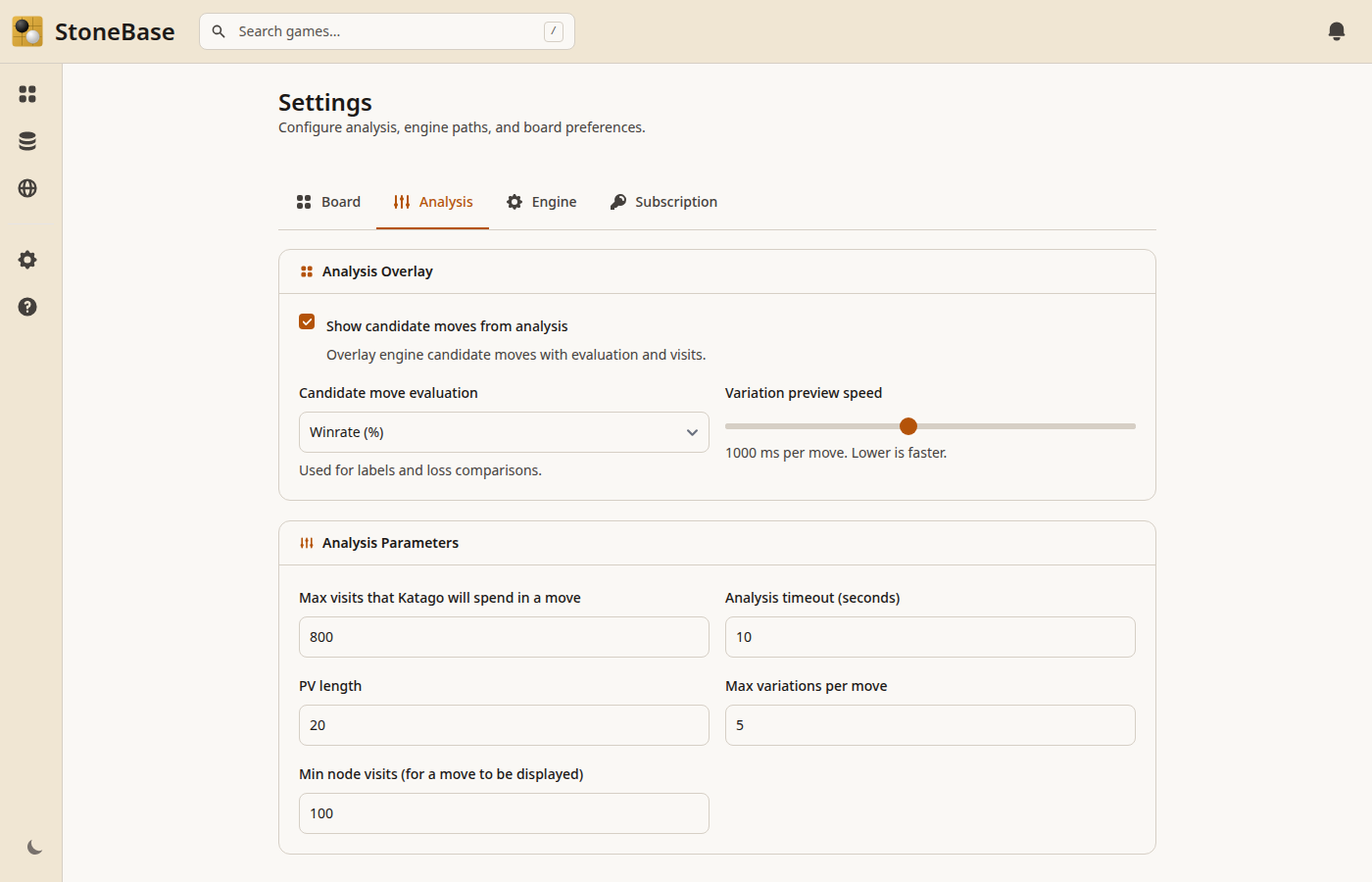
numSearchThreads: Threads KataGo uses for search. Start with 1-2 for most GPUs.maxVisits: Maximum positions to evaluate per move. 500-1000 is a good starting point.
For most users, the default analysis config works well out of the box.
Step 4: Install StoneBase
StoneBase is the free desktop app that drives KataGo and gives you a full review UI. Download the latest release from the GitHub releases page and pick the installer for your platform:
- Windows: Download
StoneBase-X.Y.Z.msi, double-click, follow the wizard. - macOS: Download
StoneBase-X.Y.Z.dmg, drag StoneBase to Applications. On first launch, macOS may block the app — go to System Settings > Privacy & Security and click Open Anyway. - Linux: Download
stonebase_X.Y.Z_amd64.deband install withsudo dpkg -i stonebase_X.Y.Z_amd64.deb.
Step 5: Configure KataGo in StoneBase
Open StoneBase and navigate to Settings. In the KataGo section, configure:
- KataGo binary path: Point this to the
katagoexecutable from Step 1. - Neural network path: Point this to the
.bin.gznetwork file from Step 2. - Config file path: Point this to the
.cfganalysis config from Step 3. If you don’t have one yet, click Download example KataGo analysis config in the settings page to get a ready-to-use template.
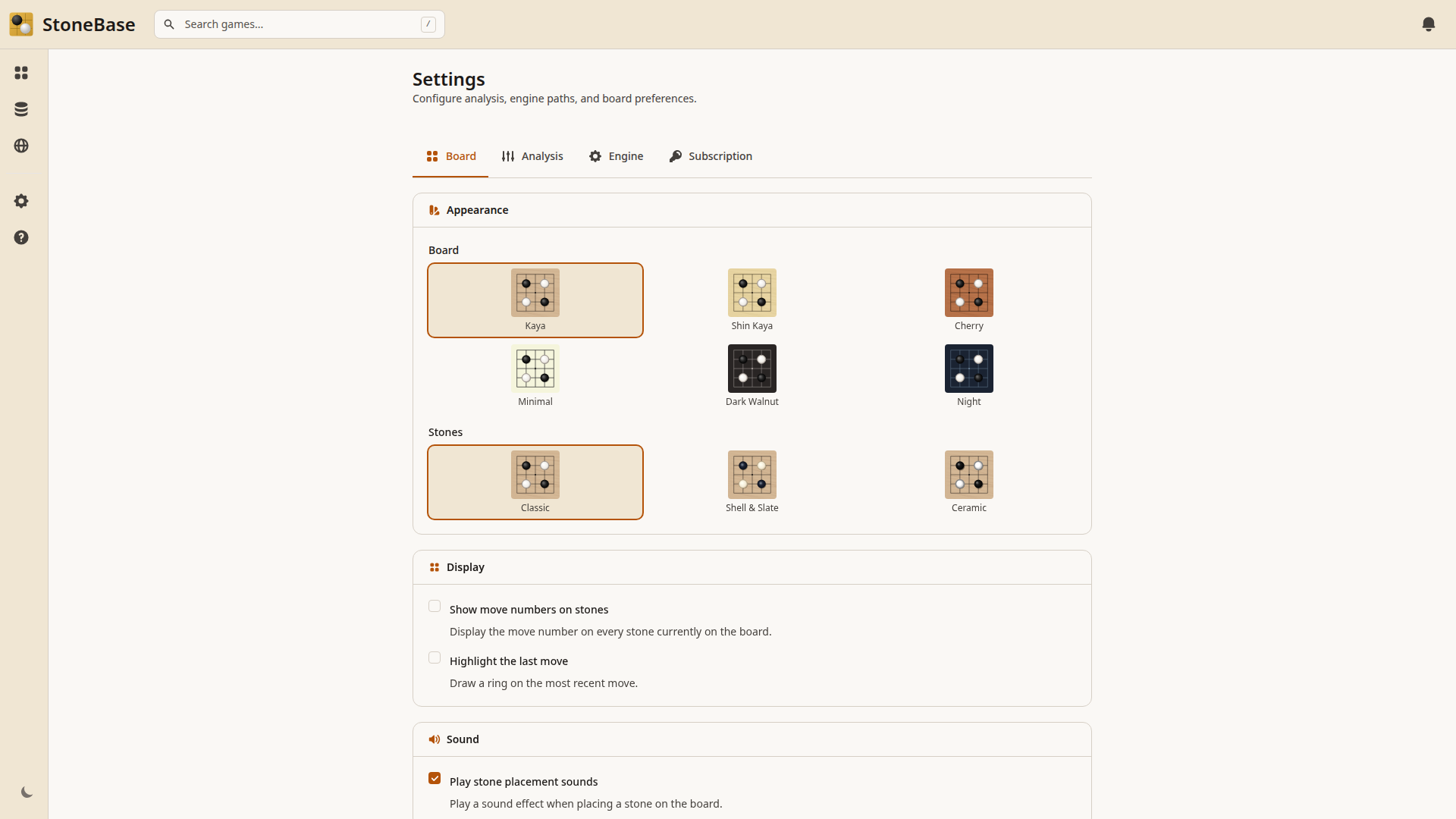
Click Save and StoneBase will verify the connection. If everything is set up correctly, you’ll see a confirmation message.
You can also fine-tune analysis parameters (max visits, threads, variations) under the Analysis tab:
Step 6: Analyze Your First Game
With KataGo configured:
- Import an SGF file or select a game from your library.
- Click the Analyze button in the toolbar.
- KataGo will evaluate each move, showing:
- Win rate: the probability of winning for each player
- Score estimate: the projected score difference
- Candidate moves: the AI’s top move suggestions with their evaluations
- Principal variation: the expected sequence of play
Navigate through the game to see how the evaluation changes at each move. Large drops in win rate highlight your biggest mistakes — those are the positions worth studying most carefully.
New to AI analysis? Read our short guide on interpreting KataGo win rate and score estimates before drawing conclusions from the numbers — misreading a 5% swing as a “blunder” is a common beginner trap.
Troubleshooting
KataGo won’t start: Make sure the binary path points to the actual katago executable (not the folder). On macOS/Linux, you may need chmod +x katago.
Analysis is very slow: If you’re running on CPU, analysis will be significantly slower. Choose a smaller network from the official networks page, or use a GPU.
“Failed to load neural net” error: Double-check the network file path and that the network version matches your installed KataGo binary. Transformer networks require KataGo 1.17 or newer, so use the latest provided binary for your backend.
Wrong score estimates: If win rates and scores seem off, check that the rules setting for your game matches the rules it was actually played under. Japanese and Chinese rules can produce different evaluations for the same position. You can configure rules per game in StoneBase’s game settings.
Frequently Asked Questions
Does KataGo work on Mac?
Yes. On Apple Silicon Macs (M1/M2/M3/M4), use the latest provided macOS binary with the Metal backend — installable with brew install katago. On Intel Macs, use the latest provided macOS binary with the OpenCL backend.
Do I need a GPU to run KataGo?
No, KataGo runs on CPU using the Eigen backend, but analysis will be significantly slower. Any modern NVIDIA, AMD, or Apple Silicon GPU will give you a large speedup — for serious review, a GPU is strongly recommended.
How do I update KataGo?
Download the latest provided binary for your backend from the KataGo releases page and replace the complete extracted package, not only the katago binary. Existing configs and conventional networks often remain usable, but transformer networks require KataGo 1.17 or newer. Check the release notes and test the setup before deleting your working installation.
Is KataGo free?
Yes, KataGo is fully open-source and free to use. StoneBase is also free to download — a Pro tier unlocks batch analysis and other advanced features, but single-game review with KataGo is free forever.
Which KataGo network should I use?
Start with a .bin.gz Network File from the official KataGo networks page. For transformer-model strength, use a transformer network from that page with the latest provided KataGo binary for your backend. Choose a smaller network on CPU or a modest GPU, then benchmark before moving to a larger model.
KataGo vs Leela Zero: which is better for game review?
KataGo is actively maintained, supports score estimation (not just win rate), handles different rulesets (Japanese/Chinese/Korean), and is generally considered stronger than Leela Zero today. For modern Go game review, KataGo is the recommended choice.
Can I use KataGo online without installing it?
StoneBase is a desktop app by design — your games and analysis stay private on your machine. We are exploring cloud-hosted KataGo analysis for the future, but it’s not available yet.
In the meantime, the desktop setup is simpler than most people expect: this guide walks you through every step, and once configured, you get unlimited free AI analysis with full privacy. If you already have a GPU, the desktop app also tends to be faster than any web-based option since there’s no network latency.
There are third-party web services like Online KataGo or AI Sensei that offer browser-based KataGo analysis without installation — but they lack StoneBase’s library management, position search, and local privacy guarantees.
What’s Next?
Once KataGo is running, you can:
- Review individual games to find your mistakes and missed opportunities
- Batch-analyze your entire library (Pro feature) to get AI evaluations on all your games at once
- Explore variations by placing stones and seeing how KataGo evaluates different continuations
The combination of your own reading ability and KataGo’s superhuman evaluation is the fastest way to identify weaknesses in your game and improve.
Related Articles
- How to Review Your Go Games: A Beginner’s Guide — Learn how to make the most of AI analysis in your game review.
- Understanding KataGo Win Rate and Score Estimates — What those numbers actually mean and how to interpret them.
- 5 Common Mistakes in Go and How AI Helps You Spot Them — The most frequent patterns KataGo reveals in player games.
- From Desktop to Tablet: What’s New in StoneBase
Ready to analyze with AI?
If you haven't set up KataGo yet, check out our complete KataGo setup guide — it covers Windows, Mac, and Linux installation in minutes.